Lede
Everything it does
Every line here is implemented in 1.0.25, the build coming next, and says how, not only that. “Command-B toggles” is a claim you can test in five seconds. Type in the box to find one.
Writing
The markers hide by what the line says, not by where your cursor is, so nothing reflows as you move through the text. Everything else is there to keep it that way.
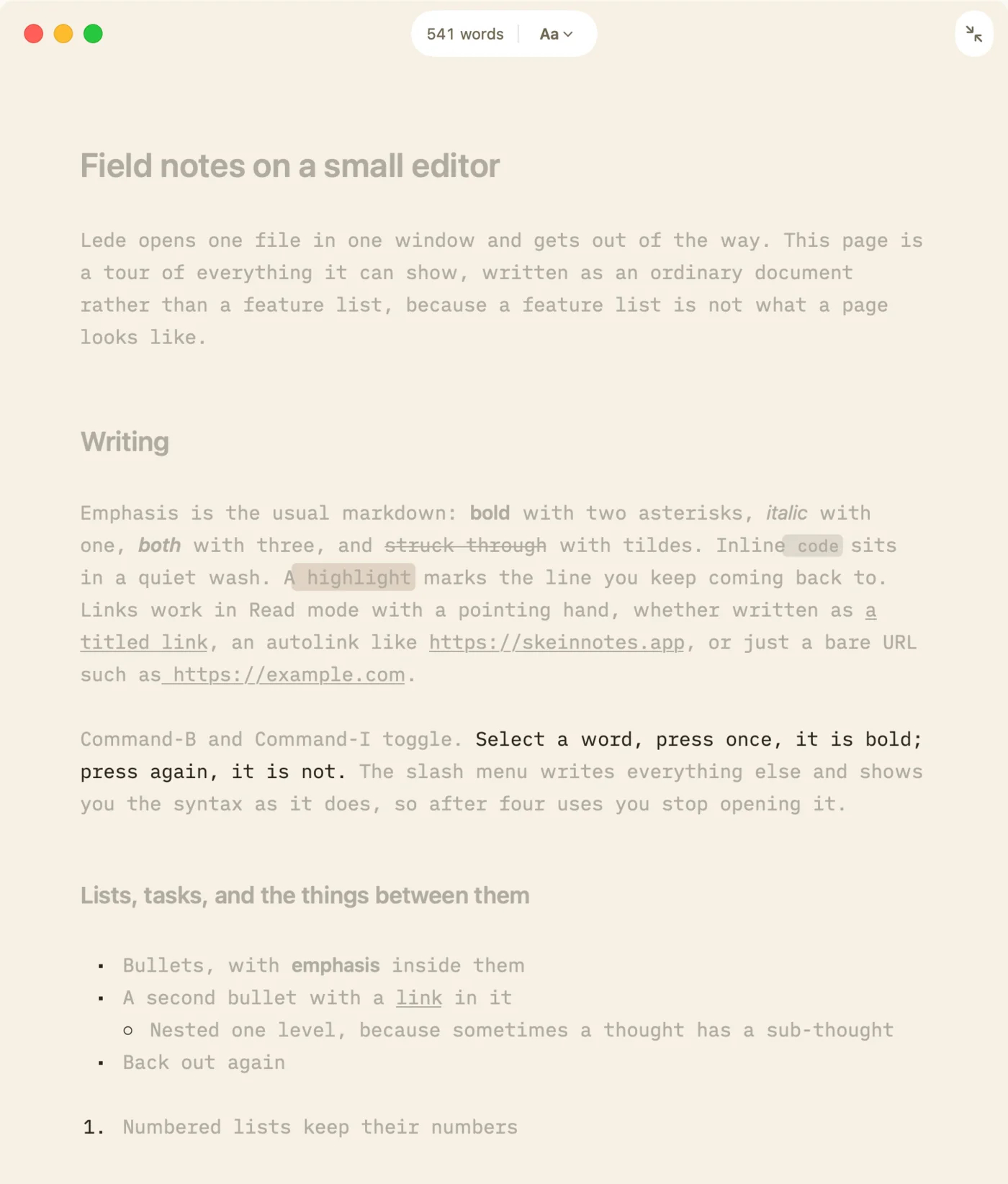
The syntax disappears
A heading reads as a heading and bold reads as bold, while the file underneath stays exactly what you typed. Lede hides the markers by what the line says, not by where the cursor is, so the text never moves under you.
Formatting that tells the truth
Select a word, press Command-B, and it is bold. Press it again and it is not. Bold, italic, underline, strike, highlight and code show whether a selection is on, mixed or off, in the bottom bar and in the small bar above selected text.
One Command-Z per change.
Paragraphs and six heading levels
Turn one line or several into body text or Heading 1 through Heading 6. Setext headings, closing hashes and CRLF files keep their words and line endings, and one Undo puts the source back.
A slash menu that teaches itself out of a job
Type / and pick a heading, a list, a table, a callout. It shows you the Markdown it is about to write, so after a few uses you type the syntax yourself and stop opening it.
Tables that behave like a spreadsheet
Inside a table, Tab moves to the next cell, Shift-Tab goes back and Return adds a row. Paste a rectangle from Numbers or Excel to make a table; format it, align a column, or move rows and columns from the Format menu.
Pictures, pasted or dropped
Paste a screenshot or drop a file onto the page and it is filed beside the document, in a folder named after it, with a relative link written into the text. Nothing is ever overwritten and nothing is ever deleted.
notes.md gets notes.assets/. Move them together and every link still works.
Focus view
Shift-Command-F, or the button in the toolbar. The title bar, the status bar and the formatting bar leave; one slim bar keeps the word count and a small Aa menu, and the window closes in to the width of your text. Escape brings it all back.
It has its own switches for Dim and Typewriter, so you can have the quiet without either.
Dim Other Sentences and Typewriter Mode
Two settings for the page itself, in View > Writing Options, both off by default. Dim Other Sentences steps everything but the sentence you are writing back to the page's own grey and eases across as you move on. Typewriter Mode keeps the line you are writing in the middle of the window and glides the page under it instead of jumping.
A caret of your own
A line, the old terminal block or an underline, in three thicknesses. It blinks the standard way, not at all, or smoothly. Five colours for each page: Theme, Ink and three hues cut for that page rather than borrowed from the one next to it. The default is a two-point line in the page's accent, easy to find when you look back.
Book Paragraphs
View > Writing Options. Paragraphs get a first-line indent, the blank lines between them close up, and a scene break is centred. It is how the page looks, not what is in the file: turn it off and the Markdown is exactly what you typed.
An outline, when a file gets long
Shift-Command-O lists the headings over the page. Type a few letters, press Return, and you are there, in Write, Source or Read. Gone again the moment you choose, because a sidebar is not what a one-file editor is for.
Paste from the web as Markdown
Edit > Paste as Markdown turns a paragraph copied from a web page or a Google Doc into Markdown: headings, links, bold, lists and tables kept. Ordinary Paste stays plain, so code you copy is never rewritten.
Smart quotes, and a hard wrap when you ask
Curly quotes, apostrophes and typographic dashes are applied as you type, and can be switched off in Settings > Writing. They never touch text that is already in the file. Format > Hard Wrap Paragraph at 80 Columns wraps one ordinary paragraph and leaves code, tables, lists, quotes, headings and link addresses alone.
A formatting bar, if you want one
Buttons along the bottom for marks, paragraphs, six heading levels, lists, tasks, quotes, code blocks and tables. It lights the block your cursor is in, keeps every command in an overflow menu when the window is narrow, and fades with the chrome while you type.
Find and replace
Command-F opens Find and Replace over the page, with literal or regular-expression search and an optional selection scope.
Writing aids you control
Option-Shift-Command-D, or Settings > Writing Aids. Nine checks you switch on one by one: filler, redundancy, clichés, complex words, long sentences, possible passive voice, adverbs, repeated words, and patterns of your own. Lede marks the phrase in the editor without changing the Markdown, explains it when you point to it, and offers to replace it, ignore it here, ignore it always, or turn that check off. Everything runs on your Mac.
Text in quotation marks is left alone unless you switch on Check quotations.
Sentence rhythm
With Writing Aids on, Sentence rhythm tints every sentence by its length, so you can see the beat of a paragraph at a glance: a run of long ones, a short one landing after them. Nothing is written into the file.
A goal, and a sprint
View > Writing Goal sets a word target for the document and starts a sprint against it. The goal is kept beside the app, not in your file.
Reading time
The status bar shows how long the document takes to read, and the count of what you have selected. Set the reading speed in Settings > Appearance.
Fold a section
Fold Section, Unfold Section and Unfold All, in the View menu, or Option-Command-[ and Option-Command-]. It only hides lines on screen; the file is never changed. A long file becomes the headings you need for the next ten minutes.
Footnotes and paired marks
Control-Command-N writes the reference, opens the definition at the end of the file and puts the caret in it; press it again in either place to jump to the other end. Type *, _, a backtick, a bracket or a quote and the closing mark appears too; type the closer to step over it. Settings can turn that off.
Vim keys, if you want them
Settings > General > Keyboard. Normal, insert and visual modes, counts and dot repeat, with the mode shown in the status bar. Off by default, and nothing changes for anyone who leaves it that way.
Nothing in the way
The chrome fades while you type and comes back when you reach for the mouse. It keeps its space while it fades, so not one line of your text moves.
Reading, and getting it out
Read is a different view, not Write with the caret taken away, and what it renders is what leaves the app.
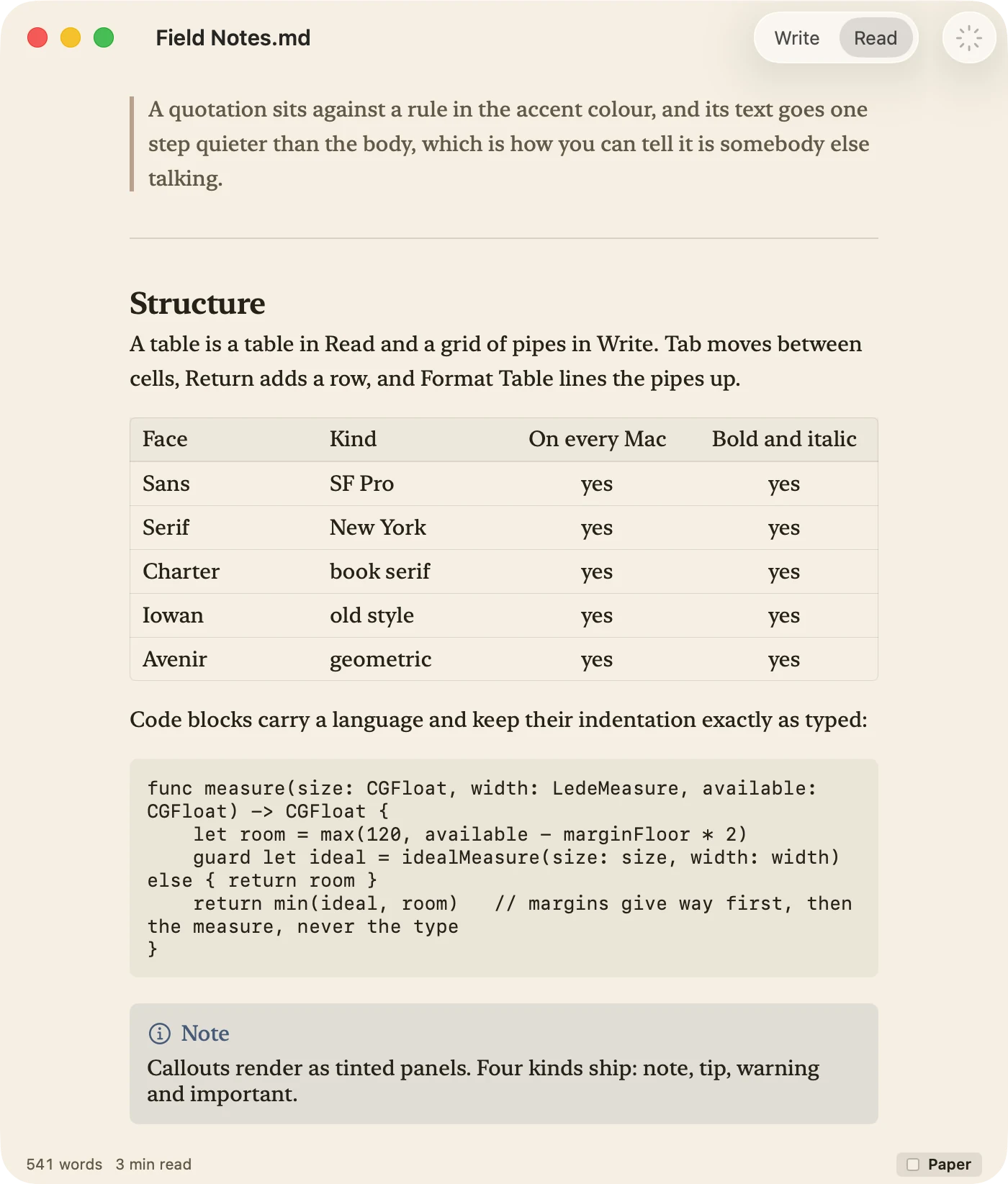
Read renders the document
Tables are tables with ruled rows, nested quotes keep their structure, callouts are tinted panels, code keeps its colours, and links are links: external ones open, local ones jump to the right heading or anchor.
Diagrams
A ```mermaid block is drawn in Write, in Read and in both exports: flowcharts, sequence, state, class and entity-relationship diagrams, pie and Gantt charts, git graphs, mind maps, timelines and journeys, in the colours of your page.
Drawn by Lede itself. No web view, no script, nothing fetched.
Maths
LaTeX between dollar signs is drawn in Write, in Read and in both exports: inline in the line, display on its own. In Write, click an equation to edit its source with a live preview; Source shows what you typed. A price is still a price, so $50 to $100 is left alone.
Rendered natively. No web view, no script, and it prints.
Export to PDF and HTML
The PDF is drawn with the system's own text engine, with page numbers and no heading left alone at the foot of a page. The HTML is one file in the colours of the page you wrote on, with every picture and equation embedded, so it can be sent anywhere and fetches nothing.
Copy as Rich Text
Option-Command-C copies the selection, or the whole file, rendered: paste it into Mail, Pages or a Google Doc and it arrives formatted rather than full of asterisks.
Quick Look in Finder
Select any Markdown file in Finder and press Space: it is shown rendered, on Lede's page, diagrams included, without opening anything.
If you have another Markdown previewer installed, macOS picks one of them.
Reference documents read properly
A relative link such as ./introduction.md opens against the folder of the document you are reading. Empty HTML anchors stay out of sight and still work as destinations, indented indexes keep their levels, and an HTML details block becomes a native fold you can open and close. Anything Lede does not draw stays visible as the text it is, never executed.
Front matter, kept quiet
The YAML block at the top of a blog post or a static-site page is shown small and grey in Write and as a small box in Read, instead of as a rule and a heading. Exports leave it out; the file keeps it, byte for byte.
Command-P prints the rendered document, not the editor. What comes out of the printer is the PDF export.
Source shows the file exactly as it is
Monospaced, uncoloured, with line numbers in the margin. The same measure runs through all three views, so switching between them never moves a line.
Markdown, properly
647 of 650 CommonMark examples and 666 of 672 GitHub Flavored Markdown examples, measured against the specifications' own test suites. Tables, footnotes, task lists, nested lists, code fences with highlighting.
The page
The one thing you cannot get from the other free editors is a considered page. The rest of the settings fit in one pane.
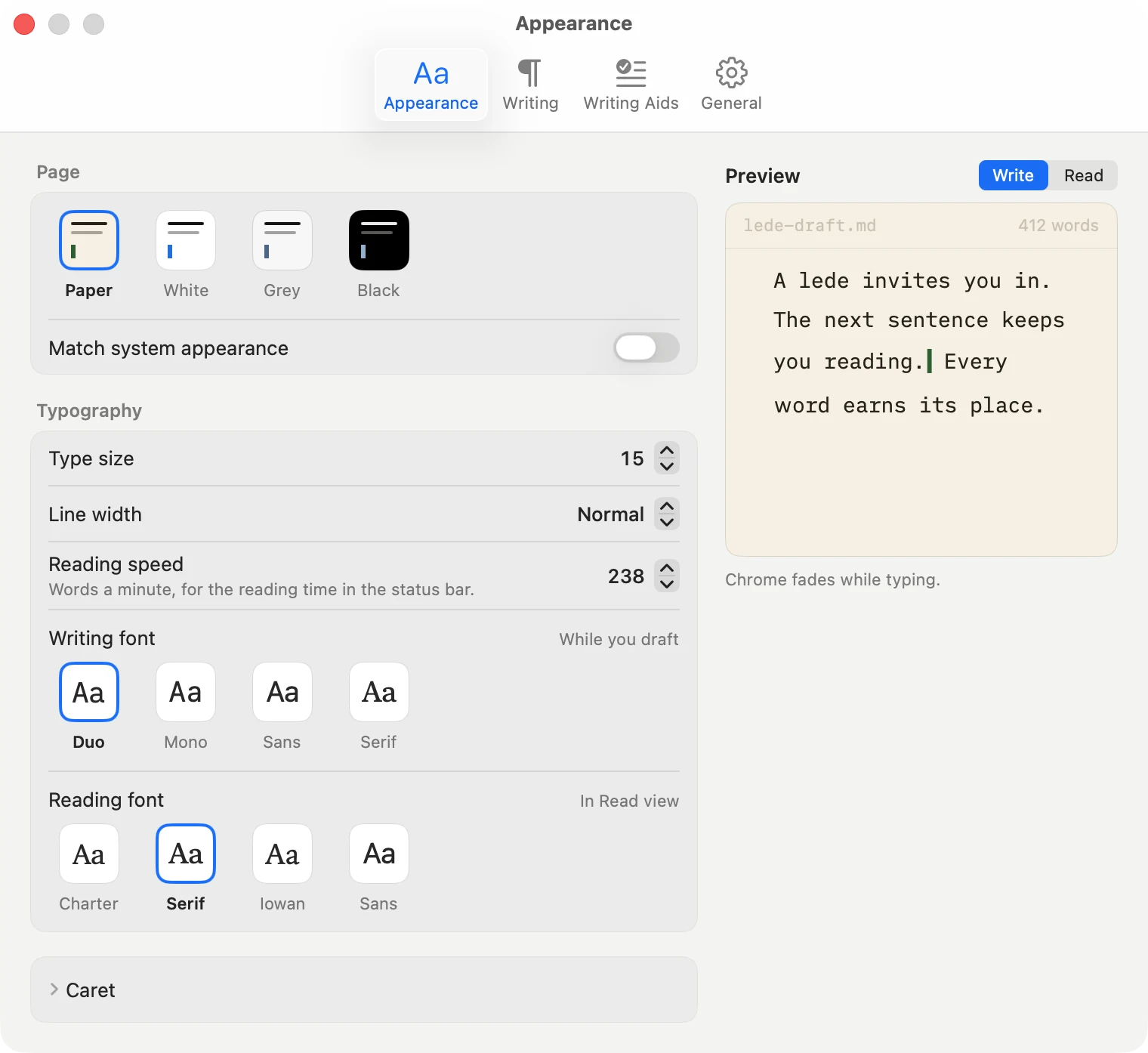
Four page colours
Paper, White, Grey and Black, chosen from the status bar and applied to the whole window rather than to a panel inside it. Each carries its own ink and its own accent, measured against that page rather than borrowed from the one next to it.
A face to write in and a face to read in
Writing starts in Duo, a duospace face made for drafts and bundled with Lede; reading starts in the system Serif. Four tiles each, from Duo, Mono, Sans and Serif for writing and Charter, Serif, Iowan and Sans for reading, every one with a real bold and italic. The line length is set in characters, so the count holds whichever face you pick.
Not a font picker, on purpose. A face with no italic draws emphasis as nothing.
Type size and line length
Eleven type sizes from 13 to 32 points, and a line length in characters rather than pixels, so a bigger size widens the measure instead of squeezing the words. Both sit behind the chip in the status bar with the page colours, because they are the things you change while writing.
Settings with a live preview
Command-comma. Compact Appearance, Writing, Writing Aids and General panes, with a preview that changes as you choose the page colour, two faces, caret and writing tools. Detailed caret controls stay folded until you need them.
A useful front door
Launch Lede with nothing open and the welcome screen offers New Document, Open and recent files, plus a short introduction to Write, Read and Settings. Or choose a blank page or the Open panel as your usual start.
It gives your file back unchanged
Open and save, twice over, and the bytes are identical. Nothing is rewritten on the way in or out: smart punctuation applies only to what you type, and only while you leave it on. All of it is held in place by a test suite rather than by good intentions.
Fine with big files, and with files that grow
A keystroke costs the lines around it, not the whole file: measured at 6 ms in a 70,000-word novel and 15 ms in a megabyte of Markdown on an Apple silicon Mac mini. A file that grows while it is open, such as a log or a report an AI tool is still writing, reloads on its own and, if you are at the end, stays at the end.
Native, and small
Written in AppKit for the Mac. No Electron, no browser engine hidden inside, no JavaScript runtime. The whole download is 19.6 MB and includes both Apple silicon and Intel Macs.
Nothing is lost when another app writes your file
If an app or an AI tool writes the open file while you have unsaved text, Lede copies the version on disk aside before anything is replaced, then asks in a bar over the page, not a sheet over the window. The last twenty versions of each file are kept, in Lede's support folder and never beside your file.
Any text file, and the Terminal
UTF-16 files open and save back as UTF-16. A new document is saved as Markdown or as plain text, whichever you choose. From the Terminal, open -a Lede notes.md opens a file, and Settings > General sets up a one-word alias.
It tells you when there is a new one
Once a day at most, Lede asks this site whether there is a newer version and says so if there is. That is the only connection it ever makes, and it carries nothing about you.
What it is not, and what to use instead
Nothing on this list is held back to sell you something. Each is a different app, and two of them are ours.
- A vault, links between notes, or search across a folder. That is Skein, which is also free and shares this editor. Lede is one file in one window on purpose: no sidebar, no folder tree, no backlinks. Use Skein
- Sync, or an iPhone app. A file on your Mac is where it stays. Skein has an iPhone app and works over a folder; Lede never will, because a one-file editor with a sync engine is a different app. Use Skein
- A document with page layout, or a Word file at the end. That is Verso. Lede exports a PDF of the rendered page and a standalone HTML file; it does not do margins, running headers, or .docx. Use Verso
- A plugin API, or any font on your Mac. Each of these is a permanent promise that would decide what the app can be for years. Lede offers six faces that all work rather than every face that might not.
If you want more than one file, you want Skein, which is free too and opens a folder of the same plain Markdown files with the same editor inside it. If you want a document to send somebody, with page layout and a Word file at the end, that is Verso.
Free · v1.0.24 · macOS 14 or later
v1.0.24 · 19.6 MB · Apple silicon and Intel
Last updated 22 November 2026 · 22 releases since launch · What’s new
Signed and notarised by Apple. Made by the people who make Skein. One developer, who answers email.